
A smart lock that suddenly stops working is not necessarily broken. Effective smart lock troubleshooting starts by identifying whether the problem comes from power, mechanical resistance, access credentials, connectivity or the lock’s software. For example, a lock may work normally when the door is open but fail when the door is closed because the bolt is binding against the strike plate. Similarly, an app showing the lock as offline does not always mean that the lock itself has stopped working.
The safest approach is to diagnose the problem in a logical order rather than immediately performing a factory reset. Start with the battery and power supply, then check bolt movement and door alignment, followed by fingerprints, PINs or other access methods. If those work, move on to Bluetooth, Wi-Fi, hubs, the app and firmware. This guide walks through the most common smart lock problems, explains what to check and shows when professional help is the better option.
Smart Lock Troubleshooting: What Should You Check First?
When a smart lock stops working, avoid changing multiple settings or performing a factory reset immediately. A better smart lock troubleshooting process starts with the simplest possible causes and moves toward more complex ones. This makes it easier to identify the actual problem without accidentally creating a new one.
- Check power and battery contacts — Confirm that the batteries are fresh, correctly installed and making proper contact.
- Test bolt movement with the door open — This helps determine whether the problem is mechanical or related to the door and frame.
- Test the lock with the door closed — If it works open but fails closed, inspect the strike and door alignment.
- Test access methods — Try the PIN, fingerprint, card or mechanical key, depending on what your lock supports.
- Check connectivity — If local access works but the app does not, investigate Bluetooth, Wi-Fi, the hub or network connection.
- Check the app and firmware — Look for available updates or model-specific error information.
- Factory reset only as a last resort — Resetting can remove stored users, settings or paired devices, so identify the underlying problem first whenever possible.
This order matters because the same symptom can have completely different causes. For example, a smart lock not responding may simply have depleted batteries, while a lock that operates correctly with the door open but will not lock when closed is more likely to have a mechanical or alignment problem.
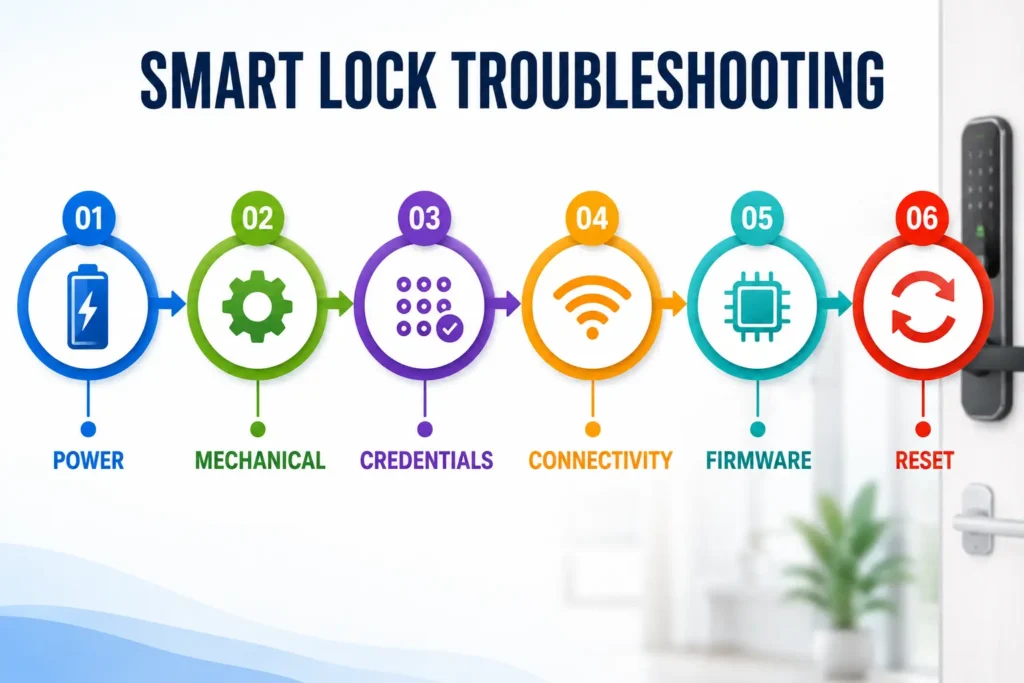
Pro Tip: Do not skip directly to a factory reset. Power → Mechanical → Credentials → Connectivity → Firmware → Reset gives you a logical troubleshooting sequence and helps isolate the actual cause before you erase the lock’s settings.
Smart Lock Troubleshooting: Quick Symptom to Cause Guide
Match the symptom to the most likely area that needs checking before trying a fix. This quick guide helps you decide whether to start with power, mechanical alignment, access credentials or connectivity.
| Smart Lock Symptom | Check First | Usually Not the First Suspect |
|---|---|---|
| Smart lock is completely unresponsive | Battery, polarity and battery contacts | Wi-Fi or app settings |
| Smart lock works with the door open but fails when closed | Door, bolt and strike alignment | Firmware or app connectivity |
| Lock works locally but the app shows it offline | Bluetooth, Wi-Fi, hub and internet connection | The mechanical lock itself |
| One fingerprint is not recognized | Finger and sensor condition, then fingerprint enrollment | A complete lock failure |
| All PINs or access codes are rejected | Code settings, lockout status and keypad condition | Door alignment, if the keypad itself responds normally |
Look for patterns rather than immediately replacing the lock. If several access methods fail together, start with power or the lock’s overall status. If only one method fails, investigate that specific access method first.
Smart Lock Not Responding at All
When a smart lock is not responding at all, check the power supply before troubleshooting the app, Wi-Fi or other smart features. Depleted batteries, incorrect polarity or poor battery contact can make the lock appear completely dead.
Check the Batteries and Polarity
Remove the battery cover and confirm that all batteries are installed with the correct polarity. If their condition is uncertain, replace all batteries together with a fresh set that matches the manufacturer’s specifications. Also inspect the battery contacts for dirt, moisture or visible corrosion, which can interrupt power even with new batteries.
Look for Low-Power Warning Signs
Depending on the model, low power may cause a dim keypad, slower motor movement, intermittent response or a low-battery warning. Replace the batteries and retest the lock before assuming that the motor or electronics have failed.
Use the Correct Emergency Power Method
Some smart locks provide an external emergency-power method, but there is no universal method. Do not assume every lock uses USB-C, a 9V battery or another specific power source. Follow the instructions for your exact model. For VEISE products, the official VEISE support page provides model-specific support and troubleshooting information.
For battery-related warning signs and maintenance, see our smart lock battery life guide.
If fresh batteries, clean contacts and the manufacturer’s emergency-power procedure do not restore the lock, avoid forcing it or performing a factory reset. The problem may require model-specific support or professional inspection.
Pro Tip: When a smart lock appears completely dead, troubleshoot power first: battery condition, polarity and contacts before assuming an electronic or connectivity failure.
Smart Lock Won’t Lock or Unlock Fully
If your smart lock won’t lock or unlock fully, do not assume that the motor or electronics have failed. Mechanical resistance between the bolt, door frame and strike plate is a common cause. The fastest way to narrow down the problem is to compare the lock’s operation with the door open and closed.
Test the Smart Lock With the Door Open
Open the door and operate the smart lock using the keypad, fingerprint, PIN or supported app method. Watch the deadbolt as it extends and retracts. If it moves smoothly with the door open but struggles or stops when the door is closed, the problem is more likely related to door alignment, the strike plate or mechanical binding than the motor itself.
Check Smart Lock Door and Strike Alignment
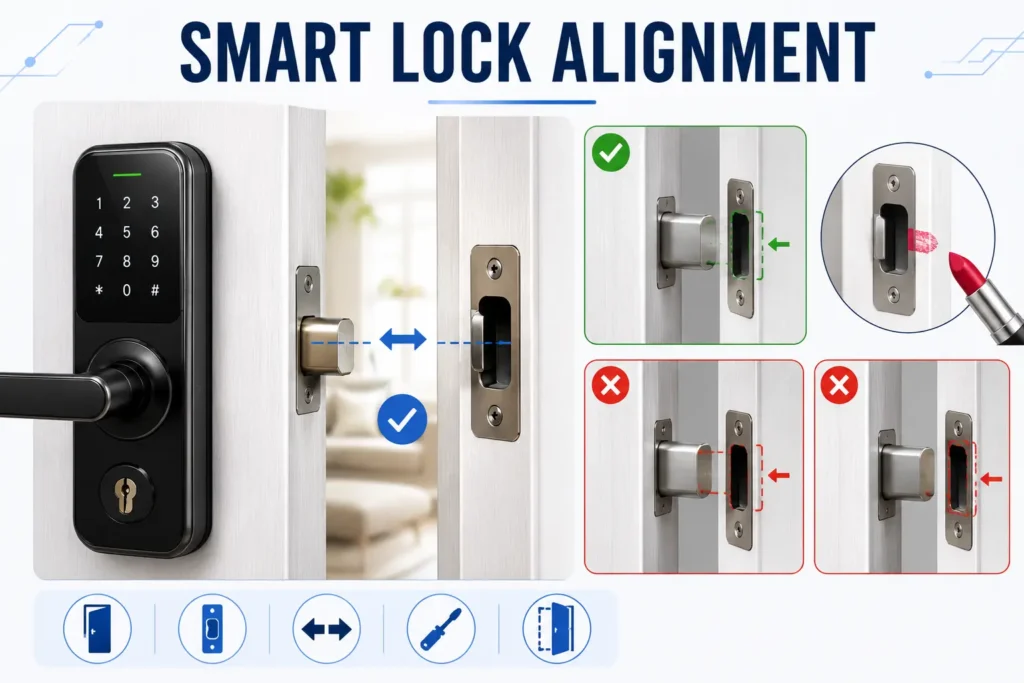
With the door closed, check whether the deadbolt contacts the edge of the strike opening. Even a small alignment problem can create enough resistance to prevent the motorized bolt from completing its movement. Look for a shifted door, loose strike plate or bolt that rubs against the strike instead of entering it cleanly.
Use the Smart Lock Lipstick Test
A simple way to identify strike alignment is the lipstick test. Apply a small amount of lipstick or another visible marking material to the end of the deadbolt, close the door and operate the lock carefully. Then inspect the strike area. The mark can show where the bolt is contacting the strike and help identify whether adjustment is needed.
Alignment can change because of sagging hinges, swollen wood or seasonal humidity. This can be particularly noticeable on wooden doors during humid or monsoon conditions.
Fix Smart Lock Binding Before Blaming the Motor
If the bolt binds against the strike, correct the underlying door or strike alignment before repeatedly operating the motor. A properly aligned door should allow the deadbolt to move without excessive force. For routine maintenance, use only a lubricant recommended by the lock manufacturer. Do not automatically spray WD-40 into the locking mechanism because it may not be appropriate for every smart-lock cylinder or mechanism.
If the lock still cannot complete its movement with the door open, or the motor repeatedly stalls despite a freely moving bolt, follow the manufacturer’s troubleshooting procedure and consider professional inspection if the problem persists.
Pro Tip: If the smart lock works normally with the door open but fails when closed, investigate the door, frame and strike alignment before replacing batteries, resetting the lock or assuming the motor has failed.
Smart Lock Fingerprint Not Recognized
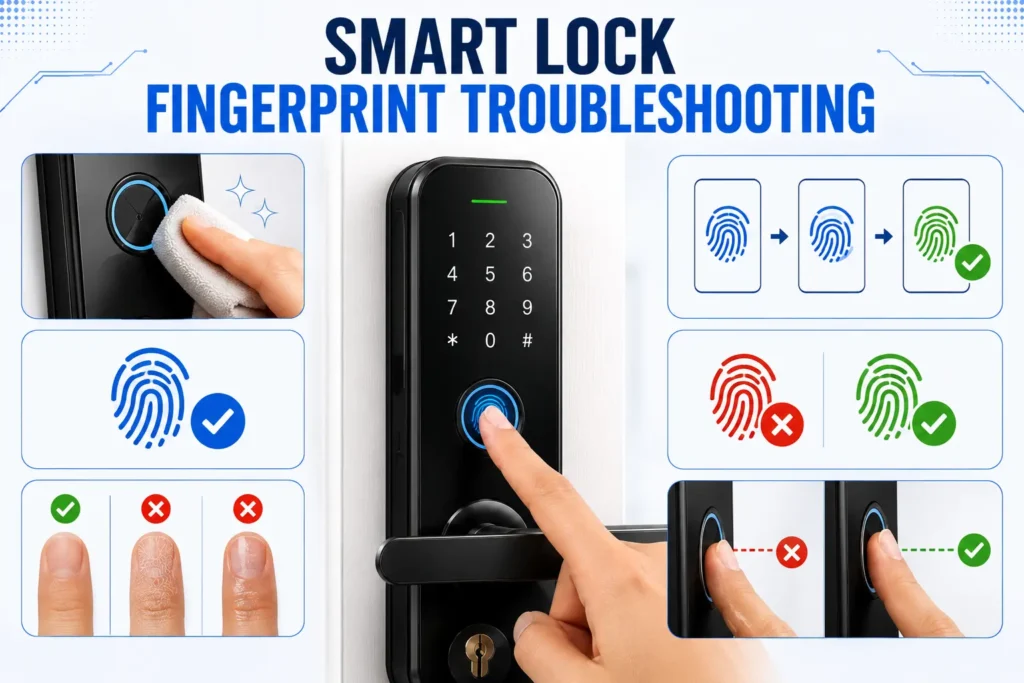
If your smart lock fingerprint is not working, do not immediately assume the sensor has failed. Recognition problems can result from a dirty sensor, a wet or excessively dry finger, weak enrollment or low battery power. First determine whether one fingerprint is failing or all enrolled fingerprints are being rejected.
Clean the Fingerprint Sensor
Check the sensor for dust, moisture or residue. Clean it according to the manufacturer’s instructions and retry with a clean, dry finger. Environmental conditions can affect recognition, so make sure both the sensor and finger are suitable for scanning.
Check Fingerprint Enrollment
If one fingerprint fails but other enrolled fingerprints work, the issue may be with that fingerprint’s enrollment rather than the sensor. Try another registered finger first. If it works, re-enroll the affected fingerprint using the manufacturer’s procedure.
If the lock supports multiple fingerprints, registering more than one finger can provide another local access option. For a comparison of biometric and keypad access, see our fingerprint vs PIN smart lock guide.
Check for Low Battery for Smart lock troubleshooting
Battery condition should also be checked when fingerprint recognition suddenly becomes unreliable. Some models can show different behavior at low battery levels, with biometric access becoming unreliable before every electronic function stops working.
For example, VEISE’s troubleshooting guidance notes that low battery can cause fingerprint-scanning problems and recommends replacing the batteries with fresh cells. This is model-specific behavior, not a universal rule for every smart lock. See the official VEISE support page for model-specific troubleshooting information.
One Fingerprint Fails vs All Fingerprints Fail
The failure pattern is an important diagnostic clue. If one fingerprint fails while another works, focus on the finger, sensor and enrollment. If all fingerprints fail, check battery power and test a supported PIN, card or mechanical key. If those methods work, the problem is more likely isolated to biometric recognition.
Pro Tip: If one fingerprint fails but another works, troubleshoot enrollment first. If every fingerprint fails, check the battery and test another supported access method before assuming the sensor is defective.
Smart Lock PIN, OTP or Card Is Rejected
If your smart lock PIN is not working, or an OTP, access card or other credential is rejected, first determine whether the problem affects one credential or every access method. A wrong code, expired guest access, keypad lockout or credential problem can produce similar symptoms.
Check the Smart Lock PIN or Access Credential
Confirm that you are entering the correct PIN or credential and check for accidental extra digits or a recently changed code. For temporary or guest credentials, verify that the access period has not expired and that the credential remains enabled. For OTP-based access, follow the manufacturer’s instructions because OTP behavior varies by model and app.
Check Smart Lock Keypad Lockout Status
Repeated incorrect PIN attempts can cause some smart locks to temporarily restrict keypad access. Lockout behavior varies by model, so if the keypad indicates a temporary lockout, wait for the manufacturer’s specified recovery period rather than repeatedly trying different codes.
Check the Smart Lock Keypad and Card Reader
A wet, dirty or unresponsive keypad can interfere with PIN entry. Clean and dry it according to the manufacturer’s instructions and confirm that the controls respond normally. If you use an access card, verify that it is the correct type and has not been disabled or damaged.
If the keypad does not respond at all, return to the power and battery checks rather than assuming the PIN is incorrect.
Test Another Smart Lock Access Method
Testing another supported method can quickly narrow down the problem. If the PIN is rejected but a fingerprint or mechanical key works, investigate the PIN or keypad settings. If all electronic credentials are rejected, check battery power, lock status and any enabled lockout mode before troubleshooting the app or network.
Pro Tip: If one credential fails but another works, troubleshoot the specific PIN, card or credential first. If every electronic access method fails together, move back to power and lock-status checks.
Smart Lock App Shows Offline or Remote Unlock Fails
If your smart lock is offline in the app or remote unlocking stops working, the lock itself may still be operating normally. First check whether local access works. A lock can accept a PIN, fingerprint or key while the app connection is unavailable because the problem may be with the phone, hub, router or internet connection.
Check Whether the Smart Lock Works Locally
Test a supported local method such as a PIN, fingerprint, card or mechanical key. If the lock works normally at the door but the app cannot connect, focus on the communication path rather than immediately replacing the lock or performing a factory reset.
Check the Smart Lock Connectivity Path
Smart locks use different communication paths depending on the model. The connection may involve Bluetooth, Wi-Fi, a hub or bridge, or a combination of these. If a hub is used, check its power and connection to the router. For direct Wi-Fi models, check the lock’s network status and router connection.
Check Wi-Fi Requirements and Signal Strength
Some models require specific Wi-Fi configurations. For example, certain locks or bridges support 2.4 GHz networks, while others may support different configurations. Check your model’s requirements rather than assuming that changing the router band will fix the problem.
Also consider signal strength. A lock installed far from the router or hub may have a less reliable connection, particularly if the problem started after changing network equipment or the lock’s location.
Restart the Smart Lock Hub, Router and App
If local access works but the lock remains offline, restart the relevant hub, bridge or network equipment according to the manufacturer’s instructions. Also close and reopen the manufacturer’s app and confirm that your phone has the required Bluetooth, Wi-Fi and app permissions.
Understand Smart Lock Power-Cut Problems in India
During a power cut, a battery-powered lock may continue to accept local access while remote app access stops working because the router or hub has lost power. These are separate problems and should be diagnosed separately.
During humid or monsoon conditions, also inspect battery contacts for moisture or corrosion if you notice intermittent electronic behavior. Follow the manufacturer’s maintenance instructions and address the source of moisture.
Check the Smart Lock App Before Resetting the Lock
If local access works but the app remains offline, check app updates, account status, network changes and manufacturer service notices before resetting the lock. A factory reset can remove stored settings, users or paired connections and should not be the first response to an app or network problem.
For a broader explanation of connected-lock communication technologies, see our smart lock connectivity guide.
Pro Tip: If your smart lock works normally at the door but the app says offline, check the communication path—phone, Bluetooth, Wi-Fi, hub, router and internet—before assuming the lock itself has failed.
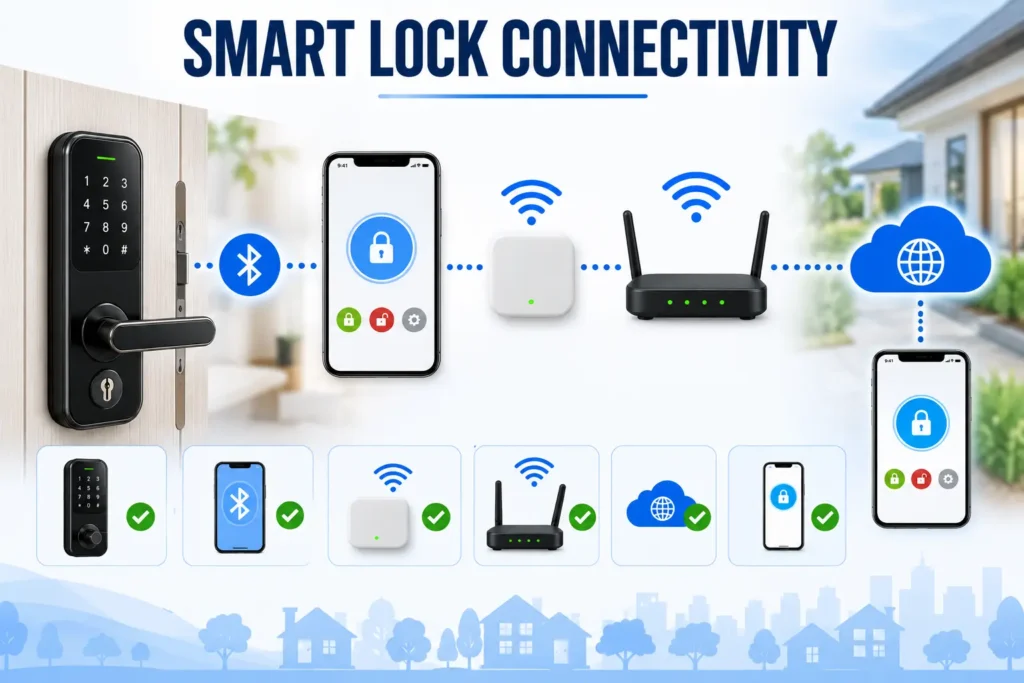
Smart Lock Won’t Pair With the App
If your smart lock won’t connect to its mobile app, first determine whether the problem is with the phone, the lock or the connection method. Pairing problems can occur when a lock remains associated with an old phone or hub, required permissions are unavailable, or the lock uses a different connectivity method than expected.
Check for an Existing Smart Lock Pairing
If the lock was previously connected to another phone, account or hub, an old pairing may interfere with a new setup. Follow the manufacturer’s instructions for removing an existing connection before trying again. Avoid resetting the lock unless the manufacturer’s recovery procedure requires it.
Confirm the Smart Lock Connection Method
Smart locks use different communication methods. Depending on the model, the lock may connect through Bluetooth or Wi-Fi, or through a separate hub or bridge using another supported protocol. Confirm your model’s requirements before changing phone or router settings.
Check Phone Permissions and Pairing Conditions
Make sure the manufacturer’s app has the permissions required for pairing and that Bluetooth is enabled when needed. Keep the phone close to the lock during setup and follow the manufacturer’s pairing sequence. If pairing still fails, reopen the app or restart the phone and retry the recommended procedure.
Pro Tip: Before resetting a smart lock that will not pair, check whether it is still connected to an old phone, account or hub. Removing a stale pairing may solve the problem without a complete reset.
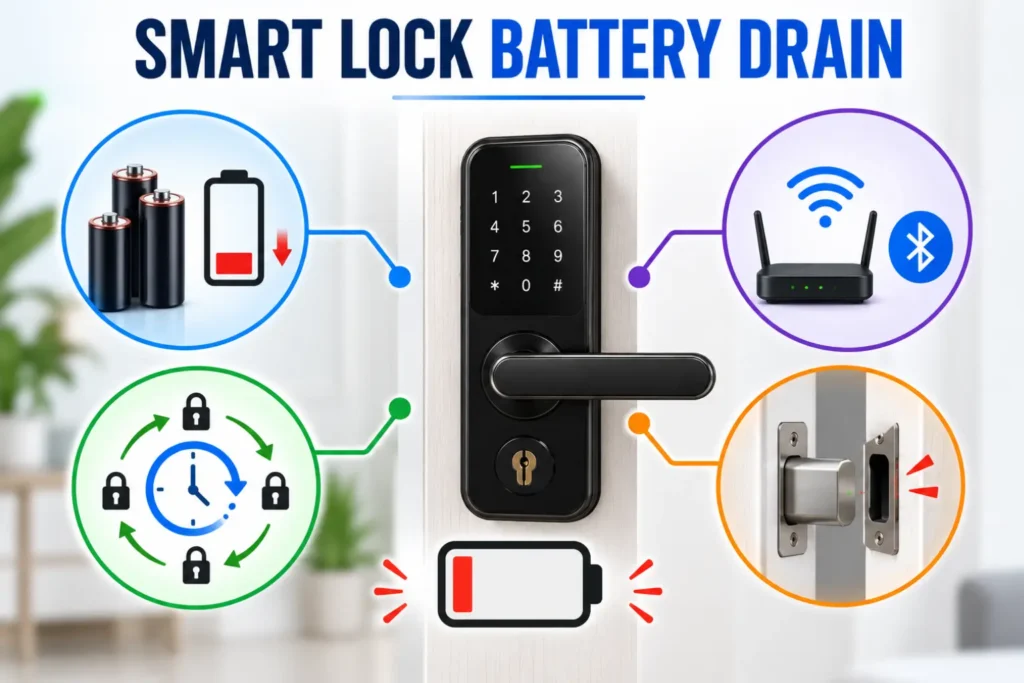
Smart Lock Batteries Drain Too Fast
If your smart lock battery is draining fast, repeatedly replacing the batteries may only treat the symptom. Frequent lock activity, weak wireless connectivity, excessive notifications, mechanical resistance or unsuitable batteries can all increase battery consumption.
Check the Smart Lock Auto-Lock Timer
A very short auto-lock interval can make the motor operate more frequently than necessary. If the bolt repeatedly extends and retracts throughout the day, review the auto-lock setting and choose a suitable interval based on the manufacturer’s recommendations.
Check Smart Lock Wi-Fi Signal and Connectivity
On connected models, a weak or unstable wireless connection can increase communication activity as the lock or its network hardware attempts to maintain or restore the connection. Check the manufacturer’s network requirements and consider whether battery drain began after a router, hub or network change.
Review Smart Lock Notifications and Activity
Frequent notifications and repeated locking, unlocking or connection attempts can increase communication activity. Review unnecessary notifications and check the activity history for unexpected repeated events.
Check Batteries and Mechanical Resistance
Use the battery type specified by the manufacturer and replace batteries as recommended. Also check whether the bolt moves smoothly. If the motor repeatedly struggles against a misaligned strike or door, correct the mechanical problem instead of relying on new batteries to compensate for the extra load.
For battery performance, warning signs and maintenance guidance, see our smart lock battery life guide.
Pro Tip: If batteries drain unusually quickly, check auto-lock activity, wireless connectivity, notifications and mechanical resistance before assuming the smart lock itself is defective.
Smart Lock Auto-Lock Misfires or Never Engages
If smart lock auto-lock is not working correctly, first check whether the door closes completely and whether the lock can detect its closed position. Auto-lock depends on both the lock’s settings and the physical condition of the door, so an alignment problem can sometimes appear to be a software issue.
Check the Smart Lock Auto-Lock Setting
Open the manufacturer’s app or lock settings and confirm that auto-lock is enabled. Check the configured timer as well, since a disabled or unsuitable setting can prevent the expected lock cycle.
Make Sure the Door Fully Closes
The door must reach the position required by the lock before the deadbolt can extend correctly. Check for obstructions, loose hardware or a door that remains slightly open. If manual locking works but auto-lock fails, inspect the door and strike alignment.
Check Smart Lock Sensor Calibration
Some smart locks use door-position sensing or calibration to determine when the door is closed. Incorrect sensor positioning or lost calibration can make auto-lock unreliable. Follow the manufacturer’s calibration procedure for your specific model rather than using a universal sequence.
Check Privacy or Passage Mode
Privacy, passage or similar modes can change how automatic locking operates. If auto-lock stopped working after changing a mode or access setting, review the current configuration before troubleshooting the hardware.
Pro Tip: If auto-lock works inconsistently, check door closure, alignment, sensor calibration and lock mode before assuming the motor or app has failed.
Smart Lock Physical Key Override Fails
If the smart lock physical key override does not work, do not force the key or repeatedly turn it against resistance. A mechanical key can become difficult to operate because of a misaligned door, a binding cylinder, a damaged key or an internal mechanical problem. First determine whether the key itself is the problem or whether the lock mechanism is under pressure.
Check the Smart Lock Key and Cylinder
Make sure you are using the correct key and that it is fully inserted into the cylinder. Inspect the key for visible bending, damage or excessive wear. If the key enters but will not rotate, the cylinder may be binding or the door may be putting pressure on the locking mechanism.
Relieve Door Pressure Before Forcing the Key
If the door is closed, gentle pressure on the door may sometimes change the load on the bolt and cylinder. Do not use excessive force or tools to turn the key. Forcing a stuck key can damage the cylinder or cause the key to break inside the lock.
Know When Smart Lock Key Override Needs Professional Help
If the correct key remains stuck, will not rotate, or breaks inside the cylinder, stop attempting to force it. A locksmith can inspect the cylinder and determine whether the problem is mechanical damage, alignment or another hardware fault without unnecessarily damaging the door or lock.
Pro Tip: A physical key is a backup access method, not something to force when the lock is binding. If the key does not turn normally, stop before the key or cylinder becomes damaged.
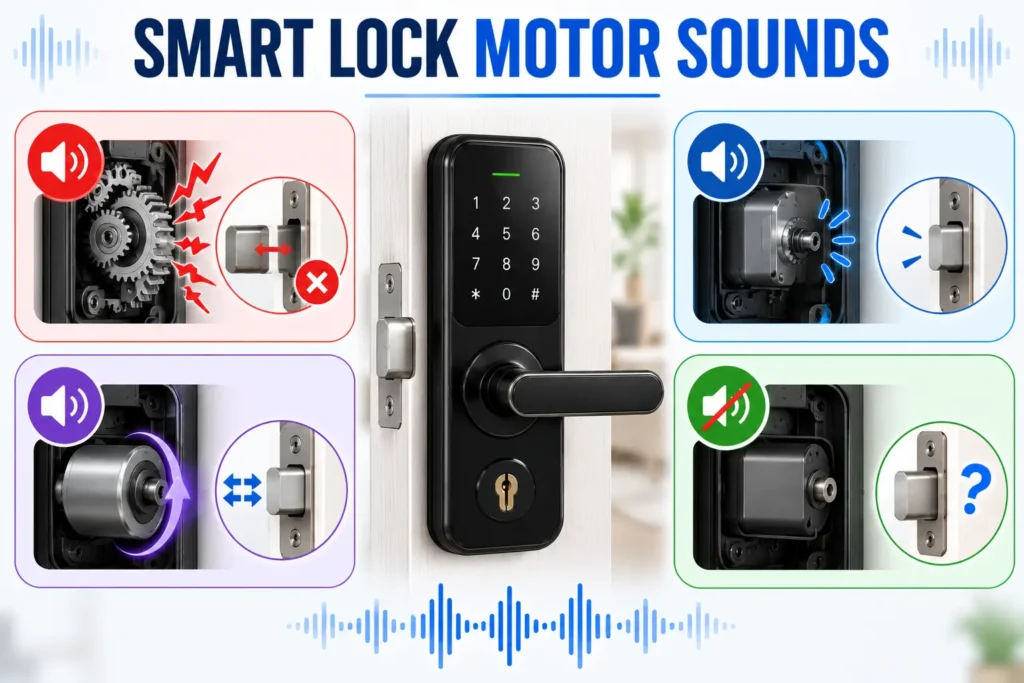
Unusual Motor Sounds — What They Mean
Unusual motor sounds can provide useful clues during smart lock troubleshooting. Instead of judging the sound alone, check whether the bolt moves and whether the problem occurs with the door open, closed or both. Different sounds can point to mechanical resistance, low battery power or an internal fault.
Grinding or Straining Sound
A grinding or strained sound can indicate excessive resistance. Open the door and test the lock again. If the motor works normally with the door open but struggles when closed, inspect the strike plate and bolt alignment before blaming the motor.
Clicking Without Normal Lock Movement
Clicking without normal bolt movement may indicate that the actuator is attempting to operate but cannot complete its movement. Check the battery condition and make sure the bolt is not obstructed. Avoid repeatedly activating a visibly binding mechanism.
Whirring but the Bolt Does Not Move
If the motor runs but the bolt does not move, perform the open-door test. If the failure continues with the door open and the batteries are known to be good, the internal drive mechanism or actuator may require inspection. Follow the manufacturer’s troubleshooting procedure rather than forcing the bolt.
Complete Silence From the Motor
If there is no motor sound, check the batteries, battery contacts and whether the lock responds to any electronic input. If the keypad or app responds but the motor remains silent after fresh batteries and basic mechanical checks, professional service may be appropriate.
Pro Tip: Compare the lock with the door open versus closed. If the motor works correctly when open but struggles when closed, investigate mechanical alignment before replacing electronic components.
Smart Lock Emergency Access & Safety
A smart lock should always have a reliable backup access method. Electronic features can become unavailable because of a depleted battery, connectivity problem or hardware fault, so knowing how to regain access is an important part of smart lock troubleshooting.
Keep the Mechanical Key Accessible
If your smart lock includes a physical key override, keep the backup key somewhere secure but accessible. Do not store the only backup key inside the locked property. The exact emergency-access method varies by model, so follow the manufacturer’s instructions.
Know the No-Power Access Method
Battery-powered locks may provide a model-specific emergency-power connection, while others rely on a mechanical key or another backup method. Do not assume every smart lock uses USB-C, a 9V battery or the same procedure. Check your model’s documentation before an emergency occurs.
If the lock has an interior thumb-turn or similar mechanical mechanism, test its expected no-power behavior during normal conditions so you understand how the backup system operates.
Do Not Factory Reset the Lock as the First Step
A factory reset can remove stored users, PINs, pairings or configuration depending on the model. If the actual problem is a depleted battery, mechanical binding or an offline app connection, resetting may create unnecessary setup work without fixing the cause.
Pro Tip: Test your smart lock’s backup access method before you need it. Knowing how to enter the property during a battery, connectivity or electronic failure can prevent a routine problem from becoming a lockout emergency.
DIY vs Professional Smart Lock Installation
Choosing between DIY and professional installation depends on more than the upfront smart lock installation cost. Door type, existing hardware, installation complexity, required tools and your confidence with the work can all affect which option provides better value.
| Factor | DIY Installation | Professional Installation |
|---|---|---|
| Labor cost | Lower because there is no professional labor charge | Higher because you pay for installation labor |
| Time | You handle the installation and setup | Less hands-on work for the homeowner |
| Tools | You provide the required tools | The installer generally provides necessary tools |
| Door modification | More challenging when drilling or adjustment is required | Better suited to installations requiring specialized work |
| Complex hardware | Less suitable for unusual locking systems | Better suited to complex or non-standard hardware |
| Setup | Usually managed by the homeowner | May be included depending on the service |
| Best suited for | Compatible and straightforward installations | Complex installations or professional assistance |
DIY Smart Lock Installation: When It Has the Advantage
DIY installation can be practical when the lock is compatible with your existing door and hardware and requires no significant modification. You can avoid professional labor charges and complete the installation on your own schedule. Even with a straightforward retrofit, follow the manufacturer’s instructions and test the lock after installation.
Professional Smart Lock Installation: When It Has the Advantage
Professional installation is more appropriate when the door requires modification, existing hardware is unusual or alignment problems need correction. It can also be useful for multiple locks or complex configuration. The additional labor cost may be worthwhile if it reduces installation errors or avoids specialized tool purchases.
Which Smart Lock Installation Option Costs Less?
DIY can reduce the labor portion of the installation cost, but tools, additional hardware, door modification and your time can reduce the actual savings. A professional quote may include hardware removal, alignment, calibration or configuration. Compare the complete project cost and scope rather than looking only at the labor charge.
For a detailed breakdown of installation expenses and factors affecting the final price, see our smart lock installation cost guide.
Pro Tip: Choose DIY when the installation is compatible and straightforward. Consider professional installation for door modification, unusual hardware, alignment problems or complex configuration.
Preventive Maintenance Checklist for Smart Locks
Regular maintenance can help prevent common smart lock problems before they become lockouts or unexpected failures. Focus on the batteries, physical mechanism, door alignment, sensors and software—not just the electronic components.
| Maintenance Check | What to Check | When to Check |
|---|---|---|
| Battery condition | Battery level, contacts and warning notifications | Regularly and when warnings appear |
| Door alignment | Door closure and smooth deadbolt movement | Periodically and after door adjustments |
| Lock and sensor cleaning | Keypad, fingerprint sensor and visible hardware | As needed |
| Firmware and app | Available updates and normal connectivity | When updates are released |
| Backup access | Mechanical key or model-specific emergency method | Periodically |
Check Batteries and Contacts
Check battery condition regularly and replace batteries according to the manufacturer’s recommendations. Inspect the compartment for dirt, moisture or corrosion, especially in humid conditions. Keep suitable replacement batteries available when a low-battery warning appears.
Check Door and Deadbolt Alignment
Test the lock with the door open and closed. The deadbolt should move without excessive resistance. If the door begins rubbing, sagging or requiring extra force to close, correct the alignment before it places additional load on the motor.
Keep Sensors and Keypads Clean
Keep fingerprint sensors, keypads and other user-interface components clean and dry according to the manufacturer’s instructions. Dirt, moisture or residue can affect biometric recognition or keypad operation.
Keep Firmware and the App Updated
Check for manufacturer-provided firmware and app updates when available. Follow the manufacturer’s update instructions and avoid interrupting firmware installation while the lock is being programmed.
Test the Backup Access Method
Periodically confirm that your supported mechanical key, emergency-power method or other backup procedure works as described by the manufacturer. Do this before an electronic or battery failure occurs.
Pro Tip: Focus on the basics: keep batteries and contacts healthy, maintain smooth bolt movement, correct alignment problems early and verify backup access before you need it.
Frequently Asked Questions About Smart Lock Troubleshooting
Will a Smart Lock Work During a Power Cut?
A battery-powered smart lock may continue to provide local access during a power cut, but app or remote access can stop if the router or hub loses power. Local lock operation and internet connectivity are separate systems.
What Should I Do if My Smart Lock Battery Is Dead?
Use the manufacturer’s specified emergency-access method, such as a mechanical key or model-specific emergency power connection. Do not assume every smart lock uses the same backup method.
Why Does My Fingerprint Fail but My PIN Still Work?
Fingerprint recognition can fail because of a dirty sensor, wet or excessively dry finger, weak enrollment or low battery conditions. If the PIN works normally, the problem is more likely limited to biometric access.
When Should I Factory Reset a Smart Lock?
A factory reset should generally be a last resort after power, mechanical, credential and connectivity checks. Follow the manufacturer’s procedure because stored users, PINs and pairings may be removed.
Why Is My Smart Lock Offline but Still Working?
If the lock accepts a local PIN, fingerprint or key while the app shows offline, the locking mechanism may be working normally. Check the phone, Bluetooth, hub, Wi-Fi, router or internet connection.
Why Does My Smart Lock Keep Failing After I Replace the Batteries?
Fresh batteries will not fix mechanical binding, damaged contacts, incorrect settings or connectivity problems. If the lock still fails, return to the diagnostic order and test each system separately.
Smart Lock Troubleshooting: Final Takeaway
Most smart lock problems can be diagnosed by checking the systems in the right order. Start with power and battery contacts, then test bolt movement with the door open and closed. Next, check fingerprints, PINs and other access methods before moving to Bluetooth, Wi-Fi, hubs, the app and firmware.
Avoid a factory reset as the first solution. It can remove stored users, PINs and paired connections without fixing a battery, mechanical or connectivity problem. If fresh batteries and basic troubleshooting do not resolve persistent motor failure, physical damage or electrical issues, stop DIY work and seek professional assistance.
If the problem points to an installation issue, see our smart lock installation cost guide for installation scenarios, DIY versus professional installation and factors that can affect the total project cost.
Remember: Troubleshoot systematically: Power → Mechanical → Credentials → Connectivity → Firmware → Reset.